
How to Set Up Facebook Business Manager Account
How to Set Up Facebook Business Manager Account
Want to learn How to Set Up Facebook Business Manager Account for your brand or agency? Setting up Meta’s centralized platform correctly is the first vital step to managing your Facebook pages, ad accounts, pixels, and team permissions securely under one roof. In this comprehensive step-by-step guide, we walk you through the entire setup process to help you launch and scale your advertising campaigns like a pro in 2026.
If you want better control over your brand’s Facebook setup in 2026, starting with a business manager account is the smart move. It gives your marketing team one organized place to handle pages, ads, access, and core social media tools without mixing personal activity with business work. That matters whether you run one brand or support several clients. In this guide, you’ll learn the setup process step by step so your account is ready for campaigns, collaboration, and steady growth.
Understanding Facebook Business Manager in 2026
Facebook Business Manager is a free platform from Facebook that helps a company or agency manage business assets in one central location. You can use facebook business manager to control facebook pages, facebook ad accounts, product catalogs, data sources, and custom audiences without handing over a personal account login to your marketing team.
In 2026, many people also see it through Meta Business Suite, but the core idea stays the same. It gives the right person, such as a marketing director or social media manager, a structured setup process for business settings, employee access, admin access, advertising campaigns, and facebook marketing from the business manager home page.
What Makes Facebook Business Manager Essential for Brands and Agencies?
For brands and agencies, facebook business manager solves a basic problem: too many people need access to too many assets. Instead of tying everything to one facebook profile, you can organize ad accounts, facebook pages, and other facebook assets inside one business account. That makes daily facebook marketing much easier to control.
It also helps your marketing team avoid confusion. The right person, such as a social media manager or marketing director, can manage business settings, approve request access, and give team members the level of employee access or admin access they actually need. That keeps your business page and facebook business page more secure.
Key reasons it matters:
- It keeps business assets separate from a personal facebook profile.
- It makes advertising campaigns and ad campaigns easier to manage.
- It helps agencies handle client facebook pages and ad accounts.
- It supports cleaner social media marketing for reaching potential customers.
Key Features and Benefits of Facebook Business Manager
A business manager account gives you a central location to organize the parts of your Facebook operation that usually get scattered. Your marketing team can manage ad accounts, a facebook business page, work pages, and facebook assets without depending on one personal account. That alone removes a lot of friction.
Just as important, the platform helps with performance and reporting. You can connect custom audiences, product catalogs, and analytics tools that support better facebook ads. Inside business settings, you can also control who gets full access and who only needs limited permissions tied to specific business assets.
Useful features include:
- Managing multiple ad accounts from one dashboard
- Assigning admin access to selected team members
- Connecting product catalogs for sales campaigns
- Using custom audiences built from website activity
- Keeping business email details tied to the account
- Organizing facebook assets separately from a facebook profile
Facebook Business Manager vs. Meta Business Suite: What’s the Difference?
Many people use the names interchangeably, and that is understandable. Facebook Business Manager was built to organize business assets, access, and account structure. Meta Business Suite is the newer environment many users see for daily publishing, messaging, and account management. In practice, both support facebook pages and social media marketing.
For your marketing team, the difference is often about emphasis. Facebook Business Manager focuses more on ownership, permissions, and connected assets, while business suite is often the place where work pages and ad campaigns get handled day to day.
| Platform | Main Use |
|---|---|
| Facebook Business Manager | Organizes business assets, permissions, ownership, and connected accounts |
| Meta Business Suite | Handles daily publishing, inbox activity, and easier ongoing management |
| Shared purpose | Supports facebook pages, ad campaigns, and broader social media marketing |
Core Functions of Facebook Business Manager
At its core, facebook business manager is a control hub. It lets you connect and organize business assets like a business page, ad accounts, product catalogs, and other facebook assets in one place. That helps you keep facebook marketing work structured as your account grows.
Another major function is team management. Instead of sharing a password tied to a personal facebook account, you invite team members directly and assign them to the right assets. This reduces confusion and makes it easier to manage facebook ads across a facebook business page or several client accounts.
Its main functions include:
- Holding ad accounts and pages under one business structure
- Connecting product catalogs for shopping and ad use
- Supporting custom audiences for smarter targeting
- Assigning team members to specific business assets through business suite tools
When to Use Meta Business Suite Instead
Meta Business Suite makes sense when your main need is day-to-day management rather than account structure. If your marketing team mostly publishes content, checks messages, reviews simple analytics tools, and watches performance on a business page, business suite can feel more direct. That is especially true for smaller companies.
A social media manager or marketing director may still use facebook business manager in the background for ownership and permissions. But for routine work across facebook pages, Meta Business Suite often becomes the easier workspace. It supports content handling while keeping the link to core business assets and ad accounts.
Use Meta Business Suite when:
- You manage regular posting and inbox tasks on a facebook business page
- Your business account needs simple visibility into analytics tools and types of ads
- Your work pages are active, but your access setup in facebook business manager is already complete
Preparing to Set Up Your Facebook Business Manager Account
Before you build your business manager account, pause and get your setup organized. This step saves time later. You want clarity on which business assets belong in the account, who will manage them, and which facebook pages or ad accounts need to be connected first.
It also helps to decide who from your marketing team will lead the process. In many cases, that is a social media manager, business owner, or senior marketer using an existing facebook profile. Once that is settled, the rest of your facebook marketing structure becomes much easier to build.
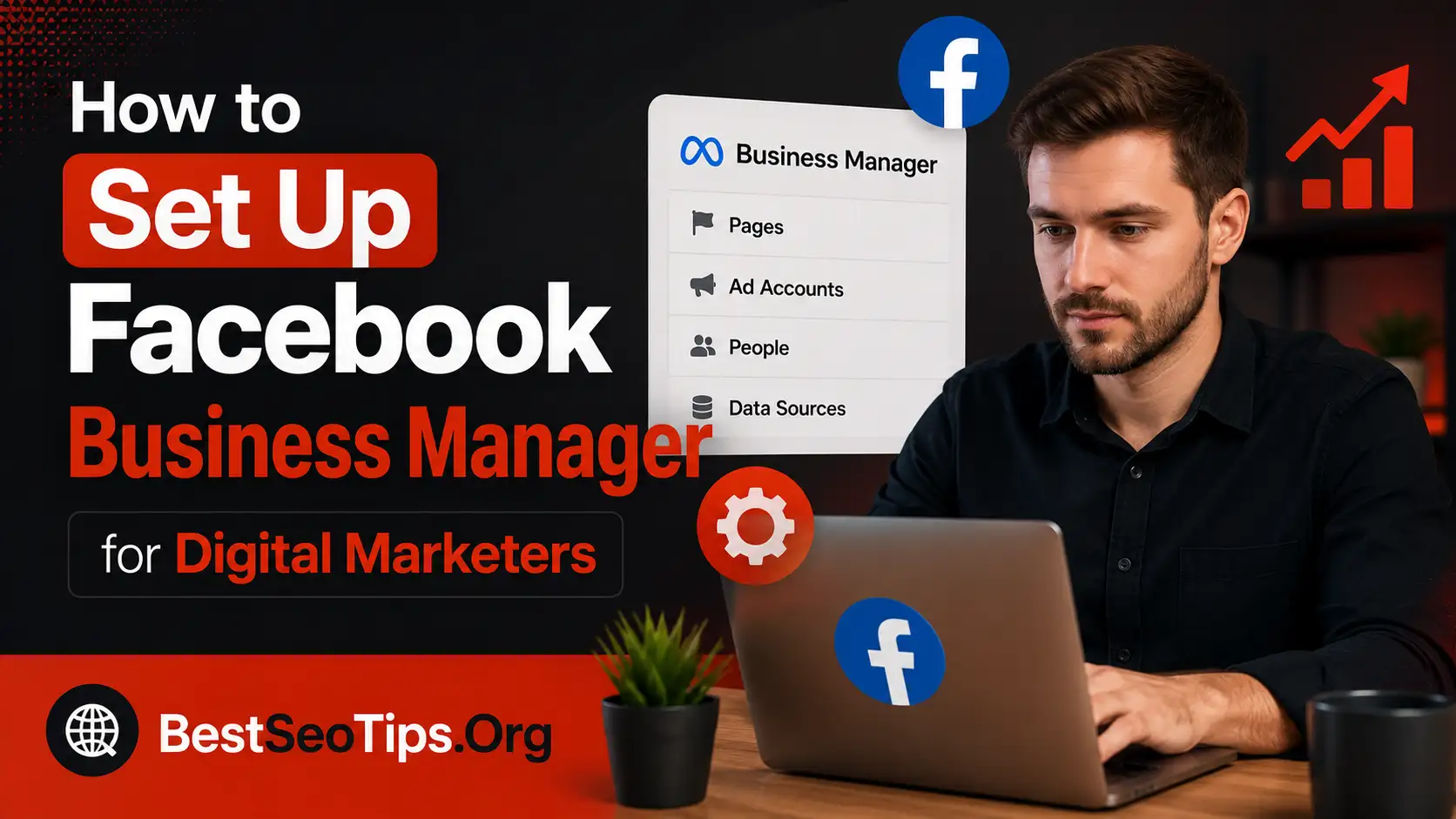
What You Need Before You Start (Requirements & Resources)
Getting started is easier when you gather the basic requirements first. Facebook requires the person setting up the account to use a personal facebook account for identity verification. That does not mean your private activity becomes public to your business. It simply supports the setup process.
You should also have your business name and business email ready before you begin. If you already have a facebook page or an ad account, keep those details close. If not, you may need to create them during setup. Planning access ahead of time also helps your marketing team avoid delays.
Have these ready:
- A valid personal facebook account for the primary setup user
- Your business name and active business email
- Access to at least one facebook page
- Existing ad account details, if you already run ads and need admin access or employee access
Setting Up a Secure Foundation for Your Business Assets
Security should be part of the setup, not something you fix later. Your business assets can include pages, ad accounts, pixel data, and product feeds, so you want clear ownership from the start. A strong foundation begins with accurate business info and careful role assignment inside business settings.
It is also smart to avoid giving everyone admin access. Most team members only need employee access to do their daily work. Keeping higher permissions limited reduces risk if staff changes or other unforeseen issues come up. The source material also recommends having more than one admin in case one person leaves.
Focus on these basics:
- Review permissions regularly in business settings
- Limit admin access to trusted leaders only
- Use the security center and verified business info to protect ad accounts and facebook ads
Step-by-Step Guide: How to Set Up Facebook Business Manager Account in 2026
Now let’s move into the actual setup. Facebook business manager is not difficult, but the order matters. If you connect your business assets in a clean sequence, your business manager account will be ready for your marketing team without the mess that often slows down advertising campaigns.
Start with the main administrator and their facebook profile, then add your business page, linked accounts, and permissions. After that, you can organize ad accounts and related tools used for facebook marketing. The next four steps walk you through the full process clearly.
Step 1: Creating Your Facebook Business Manager Account
First, choose the primary person who should create the account. For smaller companies, that may be the owner or CEO. For larger teams, it may be a marketing director or social lead. This person should use a personal facebook account and facebook profile to start the setup inside facebook business manager.
Next, go to the Business Manager home page and click create account. Facebook will ask for your business name and business email, along with other basic business details. After submission, check your email and complete verification. That step is important because full access depends on it.
Follow this order:
- Sign in with a personal facebook account
- Enter your business name and business email
- Create the business account from the setup screen
- Review details later under business settings and business info before inviting your marketing team or linking facebook pages
Step 2: Adding Your Facebook Page and Instagram Account
Once the account is live, add your facebook page. This matters because most ad formats require a page connection. Inside business settings, go to the business assets area and connect the page you own. If you do not own it directly, you may need to request access instead.
At this stage, also make sure your instagram accounts are linked to the correct page. That keeps your account structure cleaner and helps your social media manager work across channels without switching between scattered logins. Connected profiles become part of your wider facebook assets setup.
Handle this step by:
- Adding an owned facebook page or using request access for a client page
- Linking instagram accounts tied to the brand
- Confirming the connected page appears under business assets before moving on to facebook ad accounts or assigning team members
Step 3: Linking Ad Accounts and Managing Pixels
After your pages are connected, move to ad accounts. In the account area, Facebook gives you three paths: add an existing ad account, request access to one owned elsewhere, or create a new ad account. If you already run facebook ads, keep the ad account ID handy so you connect the correct asset.
Then set up your pixel under data sources. The pixel is the code that helps track website visitors, measure performance, and support custom audiences for future advertising campaigns. Even if your marketing team is not launching right away, installing it early gives your facebook account a useful data head start.
For this step:
- Add existing facebook ad accounts, request access, or create a new one
- Use data sources to set up pixels for analytics tools and audience building
- Keep ad accounts tied to the right business assets inside business suite
Step 4: Adding People, Assigning Roles, and Setting Permissions
With pages and ads in place, bring in your people. Go to business settings and invite team members who need access. By default, users are usually added with employee access. That is a good starting point because it limits risk while still letting people work on assigned tasks.
Only a few people should receive admin access. The source material suggests keeping this level for leaders who truly need it, such as a CMO or digital marketing manager. It also recommends having more than one admin so your facebook business manager does not depend on a single person.
Best practices include:
- Invite team members through the people section in business settings
- Assign different roles based on job needs
- Give access only to the right business assets, such as facebook pages or ad tools
- Use request access carefully when working with clients or external partners in your marketing team

Frequently Asked Questions
How Do I Manage Multiple Ad Accounts and Assets in Facebook Business Manager?
Use your business manager account as the main hub for ad accounts and other facebook assets. Add or request access to each account, then assign your marketing team the right employee access for specific tasks. This keeps ownership clear while letting multiple people work without sharing personal logins.
What Should I Do if I Can’t Access My Facebook Business Manager Assets?
First, confirm that you are logged in with the correct profile connected to the business manager account. Then check whether your business assets were removed or your permissions changed. If needed, ask existing admins to restore admin access or submit a new request access request for the missing assets.
Is There a Cost to Use Facebook Business Manager in 2026?
Facebook Business Manager itself is a free tool. You can create a business manager account and organize business assets, pages, and ad accounts without paying a platform fee. Costs only come in when you run facebook ads, fund campaigns, or use the business account for paid promotion.
How Do I Keep My Facebook Business Manager Account Secure?
Protect your business manager account by limiting admin access, giving most team members employee access, and reviewing permissions often. Keep more than one trusted admin in place in case staffing changes. It also helps to review settings in the security center and keep your account information accurate.
How do I get to Business Manager in Facebook?
Sign in to your personal facebook account first, then go to the Business Manager home page. From there, you can open or create your business manager account. This process uses your facebook profile for identity verification, even if the account will later support your full marketing team.
What is Facebook Business Manager?
Facebook Business Manager is a free platform that helps businesses and agencies organize business assets in one place. You can manage Facebook pages, ad accounts, pixels, catalogs, and team members without sharing private login details, which makes collaboration safer and much easier to control.
Conclusion
In conclusion, setting up your Facebook Business Manager account is a crucial step in effectively managing your brand’s online presence. By following the detailed guide provided, you can ensure that you establish a solid foundation for your advertising efforts in 2026. With the right setup, you’ll be able to streamline operations, enhance collaboration within your team, and maximize the reach of your campaigns. Remember, the key to success lies in understanding the features and benefits of the platform and utilizing them to your advantage. If you’re ready to take your social media management to the next level, don’t hesitate to reach out for assistance or tips on best practices. Your journey towards effective business management starts here!

Dylan Scott
Dylan Scott writes about changes happening in social media. He talks a lot about Facebook, Instagram, TikTok, and X. In his articles, you will read about things like setting up your account, protecting your privacy, creating content, and connecting with people who follow you. He also covers each platform, the issues people face, and how to fix them. Dylan shares tips to grow your reach, build an active following, spot new trends, and make your content perform better. His goal is to help people use social media with ease. He breaks down hard updates, new features, and how to use them into simple, helpful steps. This is great for people using social media for fun, for creators, and for businesses that want results.