
How to Create a QR Code for Google Reviews
How to Create a QR Code for Google Reviews
Creating a QR code for Google Reviews is simple and can be done for free using your Google Business Profile. First, open the Business Profile you manage and use the “Get more reviews” or “Ask for reviews” option to access your direct Google review link and, where available, the QR code. You can then download the code or turn the review link into a custom QR code for printed and digital materials.
A Google Review QR code lets customers scan once and go directly to your review page, removing the need to search for your business on Google and find the review button manually. You can place the QR code on receipts, business cards, table cards, menus, packaging, invoices, posters, or other customer-facing materials.
For the best results, use the direct review link, test the QR code on multiple phones before printing, and keep the design high-contrast and large enough to scan easily. Most importantly, ask customers for genuine feedback rather than requiring a positive rating or offering incentives for reviews.
Understanding Google Review QR Codes
A google review qr code is a scannable code that sends customers directly to your business profile review page. It removes the need to search for your business name, which saves time and reduces drop-off during the review process.
In practice, you take your google business profile review link and place it inside a qr code generator. The tool turns that link into a qr code you can print or share online. Next, it helps to understand exactly how that scan-to-review journey works.
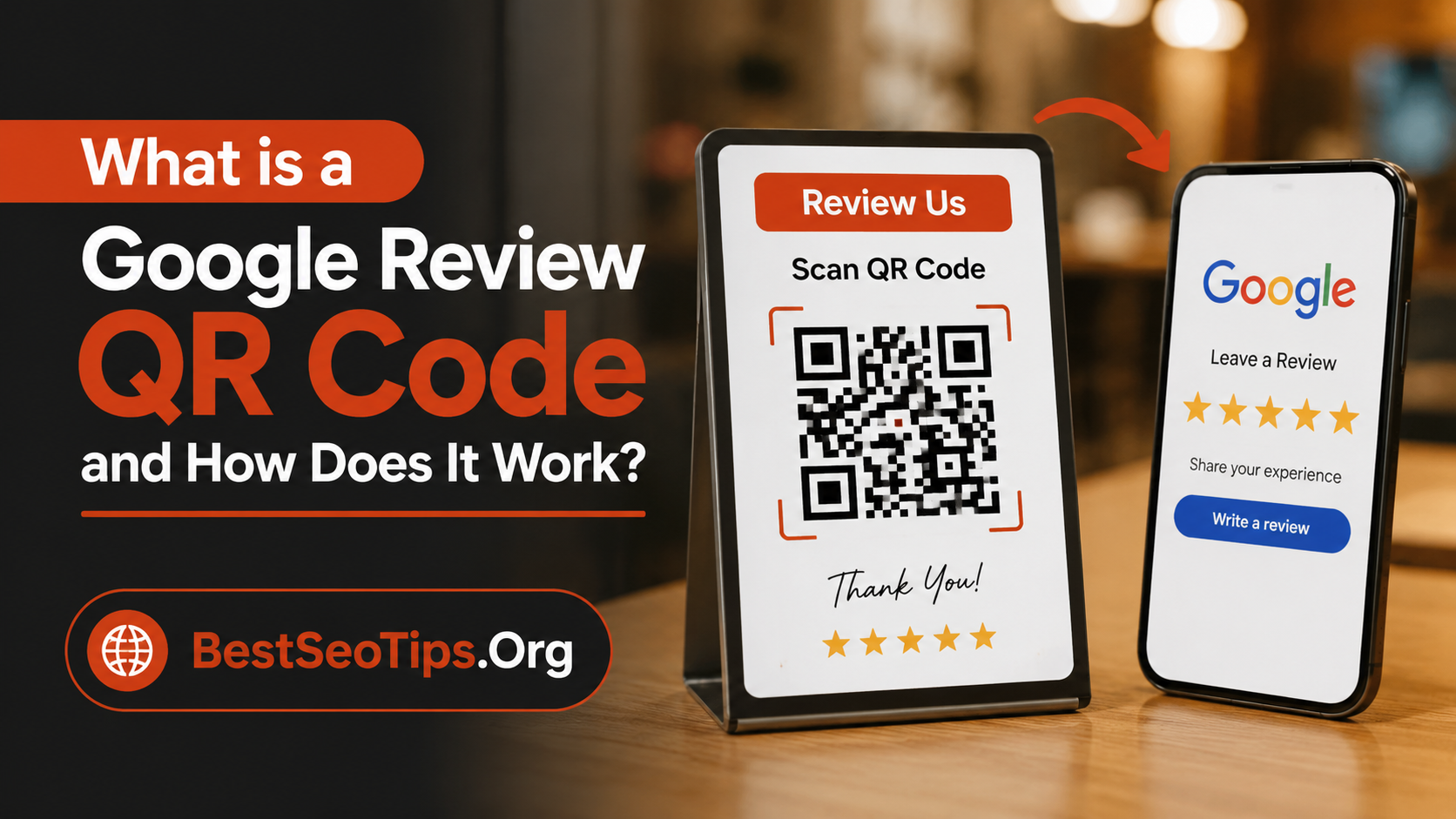
What is a Google Review QR Code and How Does It Work?
A google review qr code is a scannable code that opens your review page when a customer scans it with a smartphone camera or qr code scanner. It is tied to your google business profile, so the person lands on the right place to leave feedback.
That is what makes qr code creation so useful. Instead of asking people to type your business name, find the correct location, and then start the review process, you cut out those steps. Fewer clicks usually means fewer lost opportunities.
To create a qr code to direct customers to leave a Google review for your business, copy your review page link from your google business profile and paste it into a qr code generator. Once created, test the code, save it, and place it where customers can easily scan it.
Why Local Businesses in the United States Should Use QR Codes for Reviews
For local businesses in the United States, every review can influence whether a nearby customer chooses you or someone else. A google review qr code makes review requests easier at the exact moment a customer is most satisfied.
Here are a few reasons this works so well:
- It helps turn in-person experiences into online reviews quickly.
- It can lead to more positive reviews from happy customers.
- It supports a stronger online presence and better local search results.
When potential customers compare businesses, recent feedback matters. A simple scan can help you collect more public responses without adding friction. That means more social proof, better visibility, and more chances to win new customers in a crowded local market.
Benefits of Using QR Codes for Google Reviews
A google review qr code helps both you and your customers. It speeds up the review process, removes unnecessary steps, and makes it easier to collect customer reviews right after a visit, purchase, or service appointment.
For your business, that convenience can lead to more online reviews across the places you already use, from business cards to receipts. For customers, it feels simple and direct. In the next sections, you will see how that ease improves feedback collection and strengthens your online reputation.
Streamlining the Review Process for Customers
Scanning a qr code helps customers leave reviews more easily because it opens the google review page right away. They do not need to search for your business, check addresses, or guess which listing is correct. That direct review link saves time.
From the customer side, the process feels smoother:
- One scan takes them straight to the review page.
- It reduces typing and cuts confusion on mobile devices.
- It makes leaving customer reviews feel fast and convenient.
That is why a google review qr code is such a powerful tool. When people can act in a few seconds, they are more likely to follow through. A shorter path often means more completed reviews and a better customer experience overall.
Boosting Local SEO and Building Trust with Social Proof
More online reviews can support your local SEO efforts because they strengthen your business profile and keep fresh feedback coming in. A qr code helps by making the review process simpler, which can increase user engagement after a real customer interaction.
Trust is another major benefit. When people see recent google business reviews, they get social proof that others had a good experience. That reassurance can matter just as much as your price, location, or service list.
For new customers, public feedback often acts like a first impression. If your profile shows steady activity and positive sentiment, you look more credible in search results. A small code on a receipt or counter can help build that trust over time.
What You Need to Create a Google Review QR Code
Before you make a google review qr code, you need a few basics. First, you need access to your google business profile. Then you need the direct review link that points customers to your google review page instead of asking them to search by business name.
You will also need a qr code generator to turn that link into a scannable code. Some tools are free, while others add tracking or more design options. The next two sections break down the required account access and the tools you can use.
Essential Requirements: Google Business Profile and Review Link
Yes, you do need a google business profile to generate a Google review QR code that leads people to your review page. The review link comes from that profile, so without it, there is no direct destination for the qr code to open.
To get your google review link, search for your business name on Google and open the listing. Look for the “Write a Review” or “Get Reviews” button. If you manage the page, you can generate a shareable link from there. You may need a gmail account with admin access to manage this.
Google Maps also helps connect the link to the right business location. That matters if you serve customers from a specific address or have multiple locations. A location-specific google review page makes feedback more accurate and useful.
Free Tools and Resources to Generate QR Codes
Yes, there are free tools available to make Google Review QR codes. One option in the compiled information is The QR Code Generator, which lets you paste your Google Business review link and create a code without paying. It also supports dynamic qr code tracking and lets you save the file in different formats.
Here is a simple text table based on the provided details:
| Tool/Option | Main Use | Customization Options | Tracking | Notes |
|---|---|---|---|---|
| Google Business Profile built-in QR | Basic review sharing | Very limited | No tracking mentioned | Quick to download, but looks cluttered |
| The QR Code Generator | Google review qr code generator | Colors, frames, shapes, logo with sign-up | Yes, with dynamic qr code | Free start, no credit card required |
When choosing a free qr code generator, think about your goal. If you want speed, the built-in option works. If you want cleaner qr code design and more customization options, a dedicated generator is the better fit.
Step-by-Step Guide: How to Create a QR Code for Google Reviews
Now let’s make the process practical. Creating a google review qr code is not hard when you break it into clear steps. You start with your google review link, place it into a tool, then test and share the final code.
This section answers the common question, “What steps do I need to follow to generate a Google review QR code?” Each step below covers one part of qr code creation so you can build a working google business review qr code without confusion.
Step 1: Locate Your Google Review Link
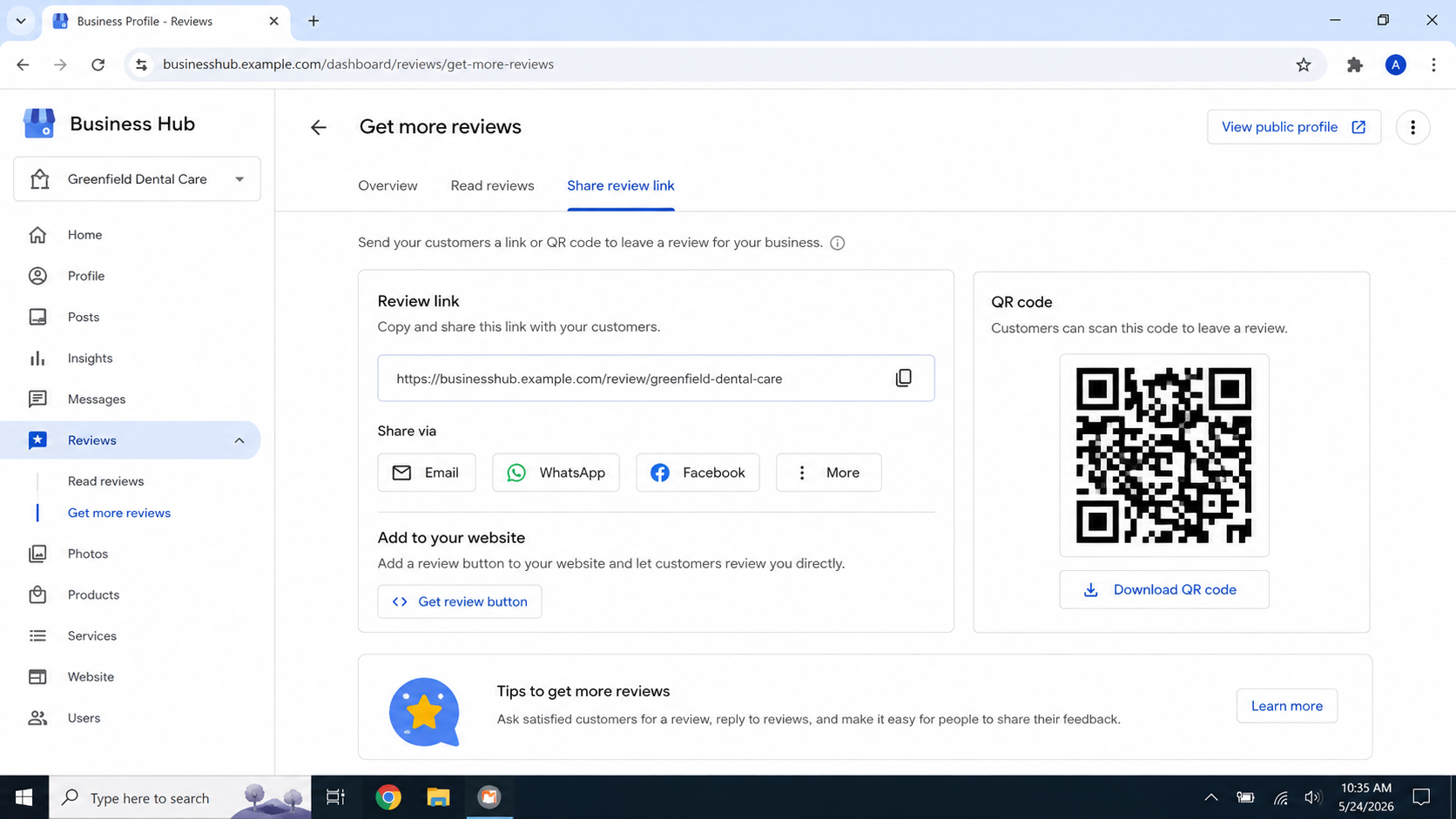
Start by finding your google review link inside your google business profile. Search for your business on Google, open the listing, and look for the “Write a Review” button. You can also scroll to the reviews section and click “Get Reviews.”
That option opens a pop-up with a shareable link and a built-in qr code for your google business profile review page. If your goal is a cleaner design, copy the google review link shown there instead of relying only on the default image.
Be sure the link points to the correct business location, especially if you have more than one listing on Google Maps. This first step matters because every other part of the setup depends on sending customers to the right google review page.
Step 2: Choose a Free QR Code Generator
Once you have the link, pick a qr code generator that matches your needs. A free qr code generator is usually enough for basic use, especially if you just want a working code for flyers, counters, or receipts. The QR Code Generator is one option listed in the compiled information.
As you compare tools, look at customization options, file downloads, and whether tracking is included. Some platforms create a static qr code, which stays fixed once generated. Others offer a dynamic qr code that can provide scan tracking and more flexibility.
If you want simple setup, a static option may be fine. If you want to monitor scans, locations, or devices used, a dynamic version is more useful. Choose the tool based on how much design control and data you want after launch.
Step 3: Paste and Customize Your Google Review QR Code
Next, paste your review link into the tool’s URL field. The platform will generate a google review qr code preview automatically. From there, you can shape the design so it fits your brand and feels more polished than the default version.
Common customization options include:
- Adding your business logo to the center
- Using brand colors that match your signage or website
- Changing corners, patterns, or frames for better qr code design
Yes, it is possible to customize the look of your Google review QR code. A customized qr code can feel more trustworthy because it looks connected to your business. Just keep usability first. Clear contrast and simple styling matter more than making the code overly decorative.
Step 4: Download, Print, and Share Your QR Code with Customers
After testing the code with a qr code scanner or smartphone camera, download the file in the format that suits your use. PNG works well for online sharing and small prints. SVG or EPS is better for large surfaces and sharper print quality.
You can print and share your code in several places:
- Add it to business cards, flyers, receipts, or table displays
- Include it in email signatures, invoices, and packaging
- Post it in social media posts and other digital campaigns
Yes, you can print your Google review QR code for offline channels like flyers or receipts. The best way to share a Google review QR code with customers is to place it where they naturally pause after a positive experience, then add a short call to action such as “Scan to Leave a Review.”
Best Practices for Sharing and Using Google Review QR Codes
Creating the code is only part of the job. To get better results, focus on best practices for placement, size, and messaging. A google review qr code should be easy to notice, simple to scan, and paired with a clear reason to act.
You can place it on business cards, flyers, receipts, menus, and social media content. The next sections cover practical display ideas and ways to improve the scanning experience so your review requests turn into more completed customer reviews.
Creative Ways to Display Your QR Code (Flyers, Tables, Receipts, and More)
You do not need to limit your qr code to one place. The strongest review requests often appear where customers already interact with your brand. That makes everyday marketing materials and in-store items excellent spots for your code.
Consider display points like these:
- Business cards, flyers, posters, and table tents
- Receipts, invoices, menus, and product packaging
- Storefront signs or other large surfaces in offline channels
Yes, you can print your Google review QR code on flyers or receipts, and that is often one of the smartest uses. The goal is to meet customers at multiple touchpoints, so they can scan whenever it feels convenient. More visibility can lead to more consistent feedback collection.
Ensuring Easy Scanning and Maximum Engagement
A good-looking code is helpful, but a working one matters more. Your qr code design should stay clear, high contrast, and large enough to scan easily. That improves the customer experience and reduces failed attempts on different devices.
Keep these important things in mind:
- Test the scannable code on multiple phones and screen sizes
- Make sure the code is large enough for the viewing distance
- Add a short CTA so people know why they should scan
The best way to share a Google review QR code with customers is to make the action feel effortless. If the code loads fast, works with a standard qr code scanner, and appears in the right place at the right moment, engagement usually improves.
Customizing and Tracking Your Google Review QR Code
A customized qr code can do more than look nice. It can connect the code to your brand through thoughtful qr code design, a business logo, and consistent brand colors. That visual match can make people feel more confident about scanning.
Tracking adds another layer of value. During qr code creation, some tools let you choose a dynamic option that shows scan activity. In the next sections, you will see how branding and tracking can support stronger review collection over time.
Adding Your Logo and Brand Colors to the QR Code
Yes, it is possible to customize the look of your Google review QR code. Many tools let you update the qr code design with brand colors, frame styles, and a business logo. Some platforms may require sign-up before logo placement becomes available.
This matters because a customized qr code looks more intentional than a plain black-and-white square. When people recognize your branding, they may feel more comfortable scanning it on a receipt, table card, or product qr code.
Still, balance style with function. Use strong contrast so the code remains easy to scan. Keep the center logo small enough that it does not interfere with readability. The best customization options support both brand recognition and reliable performance.
Tips for Monitoring QR Code Scans and Customer Feedback
If you want performance data, use a dynamic qr code during qr code creation. Based on the compiled information, dynamic options can support tracking so you can see how many people scanned the code, where they scanned it, and what devices they used.
That data can help you improve feedback collection. For example, if one display gets more scans than another, you can shift your placement strategy. If customers scan often but reviews stay low, your call to action may need to be clearer.
Tracking also gives you a better view of customer feedback patterns over time. Combined with regular testing using a qr code scanner, it helps you keep the campaign working well instead of guessing what customers respond to.
Safety, Reliability, and Suitability for All Business Types
A google review qr code is a reliable way to collect customer reviews when it points to the correct page and is tested before use. The key is simple: make sure the qr code opens the right link, scans well, and is placed where customers can use it comfortably.
This approach also works across many business models, from retail stores to food trucks and service-based businesses. The following sections explain safety basics and show how flexible qr code use can be for mobile and location-based brands.
Are Google Review QR Codes Safe for Collecting Feedback?
Yes, Google review QR codes are safe and reliable for collecting feedback when they direct customers to the correct review page and are tested before you share them. A google business review qr code is simply a shortcut to a legitimate review destination.
To keep the process dependable, always verify the link, test the code on several devices, and make sure the image quality is sharp enough for a qr code scanner. A broken link or blurry print can create frustration and reduce response rates.
If you work in sensitive spaces, the compiled guidance also recommends respecting privacy and consent during feedback collection. When used responsibly, a google review qr code can support your online reputation without making the process complicated for customers.
Using QR Codes for Mobile, Food Trucks, and Service-Based Businesses
Yes, you can use a qr code for Google reviews if you have a food truck or mobile business. You do not need a traditional storefront to benefit from a google review qr code. You only need a valid review page and a smart way to share it where customers interact with you.
Useful placement ideas include:
- Business cards handed out after service calls
- Menus, counters, packaging, or signs on large surfaces
- Receipts, invoices, or other offline channels used during checkout
This flexibility also makes qr codes useful for service-based businesses that visit customers instead of waiting for walk-ins. Whether you move between locations or operate from one spot, review requests become easier when the code travels with your business.
Frequently Asked Questions
Do I Need a Google Business Profile to Generate a Review QR Code?
Yes. You need a google business profile because your google review qr code must point to a real review page. Once you have access to that listing, you can copy the link and place it into a qr code generator to create a code for your google review page.
Can I Make a Google Review QR Code for Free?
Yes, you can make a google review qr code for free. Copy your google review link from your google business profile, then paste it into a free qr code generator. Some tools offer basic creation at no cost, while extra design or tracking features may require sign-up.
Is It Possible to Customize My Google Review QR Code’s Appearance?
Yes. Many tools include customization options that let you adjust qr code design, add brand colors, and sometimes place a business logo in the center. A customized google review qr code can look more professional, as long as the design still scans easily on different devices.
What’s the Best Way to Share a Google Review QR Code with Customers?
The best approach is to place the code where customers already engage with your business. Use business cards, flyers, receipts, counters, and social media posts. Keep review requests short, make the code easy for any qr code scanner to read, and always add a clear call to action.
Conclusion
In conclusion, creating a QR code for Google Reviews is a straightforward process that can significantly enhance your local business’s visibility and reputation. By simplifying the review process for customers, you not only increase the likelihood of receiving positive feedback but also build trust and credibility in your community. As we’ve discussed, the integration of these codes into your marketing strategy can result in a boost to your local SEO. Remember, it’s all about making it easy for your satisfied customers to share their experiences. If you want to learn more about optimizing your local brand presence, don’t hesitate to get in touch for a free consultation!

Amelia Brooks
Amelia Brooks writes about Google Reviews and the problems that come up when businesses receive online customer feedback. Her writing covers how to improve review scores, handle bad reviews or missing reviews, understand what Google wants from reviews, respond to people, and get more real feedback from happy customers. Amelia explains Google Reviews in a way everyone can understand. She shares tips that help owners make their business look better to people, build trust, and keep good reviews working for the business over time.