How to Add a Trustpilot Widget to Your Website
How to Add a Trustpilot Widget to Your Website
Learn how to add a Trustpilot widget to your website with this step-by-step guide covering TrustBox setup, widget selection, code installation, WordPress, and common issues.
To add a Trustpilot widget to your website, first choose a TrustBox widget from your Trustpilot Business account and configure its layout, content, and display settings. Trustpilot then generates the widget code. Depending on your website setup, you can add the widget through an eCommerce integration or copy and paste the TrustBox HTML into the <body> section of the page where you want the reviews to appear. TrustBox widgets can display TrustScore, star ratings, review volume, and customer reviews on your website.
Understanding Trustpilot Widgets and Their Importance
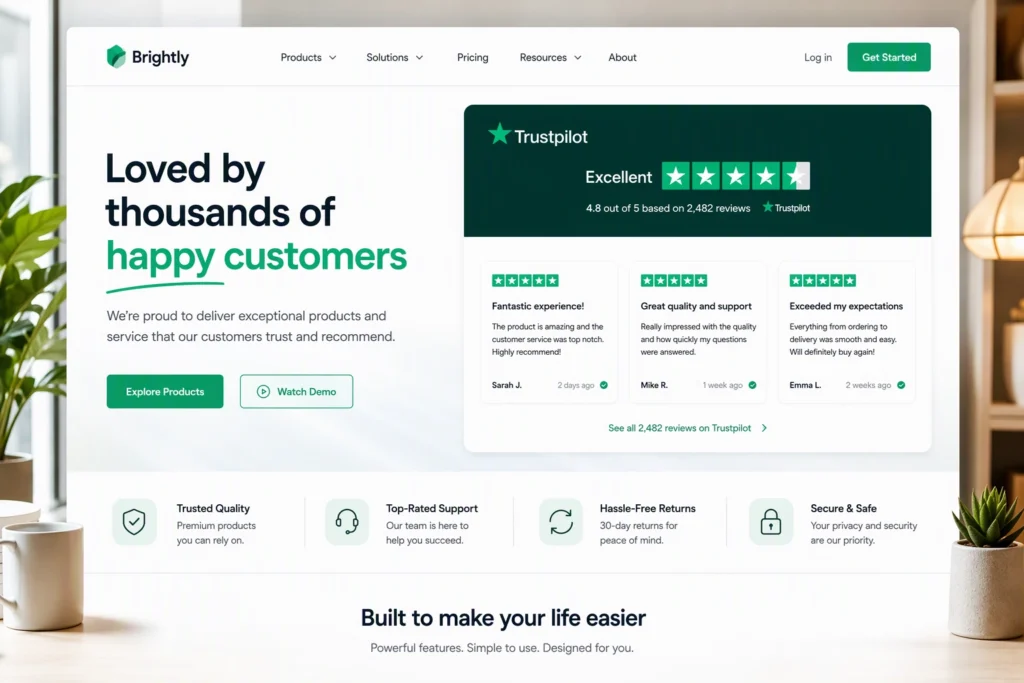
A trustpilot widget is a tool that places trustpilot reviews, star ratings, and your trustscore directly on your website. It gives site visitors a quick view of real customer feedback without sending them away from your page.
This kind of TrustBox widget matters because social proof shapes purchase decisions. When shoppers see visible ratings and recent feedback, they can feel more certain about your business. In the next sections, you will see what the widget includes and why it is worth adding.
What Is a Trustpilot TrustBox Widget?
A TrustBox widget is Trustpilot’s built-in display tool for showing reviews on your website. It pulls trustpilot reviews from the Trustpilot platform and presents them in ready-made layouts. Instead of copying testimonials by hand, you use one of Trustpilot’s TrustBox widgets to place verified feedback where your audience can see it.
Depending on the option you choose, the widget can show service reviews, product reviews, your TrustScore, star ratings, or the number of reviews. Some TrustBox layouts are made to collect new reviews, while others are designed to display existing feedback in places like your homepage, sidebar, or footer.
You typically do not need to build this from scratch with an api key or custom api setup. Trustpilot provides the widget and the code, then you place it on your site. That makes setup easier for business owners who want a clean, reliable review display.
Key Features and Benefits of Adding a Trustpilot Widget
Adding a TrustBox widget gives your website a direct way to present trustpilot reviews to new visitors. Instead of asking people to search for feedback somewhere else, you bring that information onto your own pages. That can make your message feel more credible and easier to trust.
The biggest value is visibility. Positive reviews, star ratings, and a visible trustscore can support customer trust at the exact moment someone is considering your offer. This matters on product pages, service pages, and the homepage.
- It can display trustpilot reviews automatically instead of relying on manual updates.
- It can show star ratings, trustscore, and the number of reviews in one place.
- It can help strengthen customer trust with clear social proof.
- It can fit different placements, from headers and footers to content blocks.
Why You Should Add a Trustpilot Widget to Your Website
Online reviews influence buying choices every day. If people already rely on outside feedback before they buy, it makes sense to place that feedback on your own site. A visible trustscore and review section can reduce doubt and help visitors move forward.
There are easy ways to show trustpilot reviews on your homepage or other pages. A widget gives you one of the simplest options because it places social proof where it matters most. Let’s look at how that can affect trust and conversions.
Boosting User Trust and Conversion Rates
People often hesitate before they buy, sign up, or contact a business. A trustpilot widget helps remove some of that hesitation by putting real feedback in front of them. When your review widget shows strong ratings and recent opinions, visitors do not have to guess how others feel about your business.
That extra confidence can support customer trust in a very practical way. Instead of relying only on your own marketing copy, your site includes outside validation. For many shoppers, that is more persuasive than a sales message alone.
This is why trustpilot reviews can affect conversion rates. If someone lands on your homepage or a service page and sees clear proof from other buyers, they may feel more ready to act. Small trust signals often shape big business results.
How Displaying Trustpilot Reviews Impacts Your Business
Displaying trustpilot reviews can change how site visitors view your brand. Instead of seeing only your claims, they also see business reviews from real customers. That makes your message feel more balanced and more believable.
This is especially important because online reviews often guide purchase decisions. A strong trustscore and visible feedback can make your business look established, active, and transparent. It also helps visitors find reassurance without leaving your website.
- It gives site visitors immediate social proof.
- It highlights your trustscore and business reviews in a visible format.
- It can help support purchase decisions by showing authentic feedback.
- It keeps online reviews connected to your own website experience.
What You Need Before Adding a Trustpilot Widget
Before diving into adding a Trustpilot widget, understanding a few fundamental components is essential. Start by ensuring you have a Trustpilot business account to manage your feedback and gather trust signals effectively. Familiarizing yourself with the types of Trustpilot review widgets available, such as TrustBox, will help in selecting the one that aligns with your website’s design. Additionally, you’ll need access to your website’s HTML and possibly a WordPress plugin to seamlessly integrate the widget into your online presence.
Prerequisites and Account Setup
Before adding a Trustpilot widget, ensuring a Trustpilot business account is essential. If you don’t have one yet, sign up and verify your company details to access valuable features like customer reviews and star ratings. Additionally, you’ll need to familiarize yourself with the Trustpilot platform, as it provides tools crucial for configuring your widget. Keeping your account manager’s contact information handy can also be beneficial for support throughout the process, ensuring smooth setup and maximizing customer trust through effective use of testimonials.
Choosing the Right TrustBox for Your Platform
Not every TrustBox widget fits every page. Trustpilot offers different layouts, including small, medium, large, vertical, and horizontal options. Some focus on service reviews, some show product reviews, and some are built to collect new reviews.
If you want an easy way to display reviews on your homepage, choose a layout that is visible without taking over the page. A small banner near the top of the page or a medium content block can work well. For sidebars or footers, smaller formats usually make more sense.
Think about your platform too. A trustpilot reviews widget on WordPress may be added with a plugin or block, while other platforms may rely on embed tools. The right layout should match both your website design and your editing options.
Step-by-Step Process to Add a Trustpilot Widget to Your Website
Adding a Trustpilot widget to your website enhances user experience by providing valuable social proof through customer reviews. Begin by logging in to your Trustpilot business account. Navigate to the TrustBox section, where a variety of review widget options await. Next, pick your preferred TrustBox widget type that best aligns with your site’s design. Customize it for layout and display preferences, ensuring it showcases star ratings and positive reviews effectively. Publish changes to make it live for your visitors to see!
Step 1: Log In to Your Trustpilot Business Account
Accessing your Trustpilot business account opens the door to enhancing customer trust through reviews. Simply visit the Trustpilot website and click the login button. Enter your credentials, including the email associated with your account and your password. If you’ve forgotten your password, utilize the recovery option for quick access. Upon successful login, you’ll be directed to your dashboard, where you can manage your Trustpilot reviews, view your Trustscore, and start exploring Trustbox widgets tailored to boost engagement on your site.
Step 2: Choose and Configure Your TrustBox Widget
Selecting the right TrustBox widget is essential for showcasing your business’s positive reviews. A variety of styles are available, including carousels and grids, allowing you to pick one that enhances your website design. Once you’ve chosen your TrustBox, configuring it is a breeze. You can adjust settings like layout, number of reviews displayed, and filter options to highlight your best testimonials. Trustpilot’s TrustBox widgets can help you choose a suitable format before moving on to the next steps.
Step 3: Generate Your Trustpilot Widget Code
Once your settings are ready, generate the widget code. This is usually the html snippet or embed code that Trustpilot gives you after you select and configure the widget. You copy that code and place it into your website where you want the review display to appear.
For many websites, this is straightforward. If you are working on a single page application, the process still starts here: create the widget, copy the code, and add it to the correct page area where your app can render embedded content. The exact placement depends on how your site handles html blocks.
- Open the selected trustpilot widget in your account
- Finish the visible configuration settings
- Copy the generated widget code or html snippet
- Keep any technical details together if your setup also mentions an api key
With the code copied, you are ready to place it on your site.
Step 4: Embed the Widget Code on Your Website
Now paste the widget code into your website. On many platforms, that means adding the html to a custom code area, page section, or embed block. On WordPress, some tools may also let you use a shortcode or block instead, depending on whether you use Trustpilot’s tools or a plugin.
If you run a single page application, place the trustpilot widget code in the part of the page that supports embedded html. Then test the result on desktop and mobile devices. If the widget does not appear, check whether your page builder or app framework limits external scripts.
| Platform Type | Common Embed Method |
|---|---|
| Standard website page | Paste widget code into an html or custom code block |
| WordPress website | Use html, a shortcode, or a plugin-based block or widget area |
| Shopify store | Add code through theme customization or app-related sections |
| Single page application | Insert html in a supported render area and test script behavior |
After embedding, preview the page and publish changes.
How to Add a Trustpilot Widget to Specific Platforms
Different platforms handle widgets in different ways. The good news is that a trustpilot widget can usually be added to WordPress, Shopify, and Wix with simple tools already built into those systems. The steps change, but the idea stays the same.
You choose the TrustBox widget, get the code or plugin support, and place the reviews where they make sense. Here is what that looks like on the three platforms most people ask about.
Adding a Trustpilot Widget to WordPress
On a WordPress site, you have more than one way to show trustpilot reviews. One option is the official Trustpilot route with a TrustBox widget. Another is using a wordpress plugin such as Reviews Feed Pro from Smash Balloon, which the compiled information describes as a simple way to display existing reviews without coding.
The plugin path is especially helpful if you want easier design control, automatic updates, and support for page builders. You can create a feed, connect your Trustpilot page URL, customize the layout, and embed it on pages, sidebars, or footers.
- Install and activate the wordpress plugin
- Create a Trustpilot review feed
- Connect your Trustpilot source using your page URL
- Embed the trustpilot widget using a block, page option, or widget area
This is one of the easiest answers for anyone asking how to show Trustpilot reviews on a WordPress website.

Adding a Trustpilot Widget to Shopify
Yes, you can add a TrustBox to a Shopify store. The basic approach is the same as on other sites: choose the widget in your Trustpilot account, generate the code, and place it into a section of your Shopify theme that accepts embedded content. That allows trustpilot reviews to appear on product, homepage, or footer areas.
If your setup uses a trustpilot app or theme integration, follow that route first because it can make placement easier. If not, use the widget code from Trustpilot and add it through Shopify’s theme editing tools. Keep the layout simple so it blends with your storefront.
After that, preview the store carefully. Check spacing, mobile devices, and the visibility of star ratings. A clean trustpilot widget on Shopify can support confidence without distracting shoppers from the product page.
Adding a Trustpilot Widget to Wix
On Wix, the usual method is to embed the TrustBox code into the page area where you want the reviews to appear. Wix supports custom embed elements, so you can often paste the Trustpilot code into a section and place it visually within your layout.
Start by creating the trustpilot widget in your account. Then copy the code and open the Wix editor. Add an embed element or custom code area, paste the snippet, and position it on the page. This works well for homepage sections, service pages, or testimonial-style areas.
Once it is in place, test the widget on different screen sizes. Trustpilot reviews should be readable and balanced within the design. If a section feels too crowded, move the TrustBox lower on the page or choose a smaller layout that better fits your Wix site.
Customizing and Optimizing Your Trustpilot Widget
A trustpilot widget should look like it belongs on your site. Even though Trustpilot uses set styles, you still have useful choices around layout, theme, position, and display format. Good widget customization improves visibility without making the page feel forced.
If you need more control, some platforms and plugins offer extra styling options. The next two sections cover basic appearance settings first, then what advanced customization may look like when custom code is available.
Basic Customization Options
The easiest way to handle widget customization is to use the options already available inside the TrustBox setup or plugin editor. Trustpilot’s own widget settings can include things like theme, position, page placement, and size. If you use a plugin, you may also get live preview tools and layout choices.
Basic changes often make the biggest difference. You do not need to rebuild the widget. Instead, focus on appearance choices that improve readability and fit your design. This helps star ratings and review text stand out without clashing with your page.
- Choose a TrustBox size that matches the page layout
- Set the theme to light or dark based on your background
- Adjust the position to above, below, or floating when available
- Pick a format that highlights star ratings clearly
Simple adjustments usually go far enough for most business websites.
Advanced Styling Using Custom Code
Yes, advanced customization may be possible if your platform allows custom code around the widget area. The compiled information notes that manual methods can require HTML editing and custom CSS to better match site design. That means deeper styling is possible, but it depends on how flexible your website setup is.
This approach is more useful when the standard TrustBox widget does not fit your layout. For example, you may want tighter spacing, a different surrounding section style, or a more tailored placement inside your content structure. Those changes usually happen around the widget, not by rebuilding Trustpilot itself.
If you want more design control without heavy coding, a plugin-based option can be easier. On WordPress, tools like Smash Balloon are described as offering stronger layout control, visual editing, and responsive design without requiring technical work.
Troubleshooting Common Trustpilot Widget Issues
Sometimes a trustpilot widget does not appear the way you expect. It may not load, it may look wrong on mobile devices, or it may conflict with your page structure. In most cases, the problem comes from placement, unsupported areas, or limited script handling.
Good troubleshooting starts with the basics: check the code, the page section, and the platform rules. If that does not help, use the supportcenter or switch to a supported workaround. Let’s cover both.
Widget Not Displaying Properly
If your trustpilot widget is not displaying properly, do not assume the code is broken right away. Many widget issues happen because the code was added to the wrong page area, the platform blocks external scripts, or the layout is too small for the selected widget type.
Start with simple troubleshooting. Preview the page, test on mobile devices, and confirm that the correct trustpilot reviews source is connected. If you recently changed themes, page builders, or app settings, those changes may affect how the widget loads.
- Recheck where the trustpilot widget code was pasted
- Test whether the page supports embedded html or scripts
- Try a different TrustBox size or position
- Review guidance from the supportcenter if the issue continues
When the widget still fails, a platform-specific workaround may be the better option.
Workarounds When Widgets Aren’t Supported
If a normal trustpilot widget is not supported, you still have options within the compiled information. On WordPress, a plugin-based review widget can act as a practical workaround. Reviews Feed Pro is presented as a way to display existing Trustpilot reviews with more design flexibility and without direct coding.
That can be useful if your platform limits the standard TrustBox, or if you want better control over layout and filtering. The plugin also supports combining reviews from other sources like Google, Facebook, and Yelp, which may help if you want a broader proof section tied to social media and review content.
Another workaround is manual placement of selected testimonials, though that does not update automatically. It can work for one-time display needs, but for most websites, a supported widget or plugin remains the cleaner long-term solution.
Frequently Asked Questions
Can I use a Trustpilot widget for free?
Yes, some TrustBox widget options are available on free Trustpilot plans, based on the compiled information. Still, access can vary by widget type. If you want more flexibility for displaying existing trustpilot reviews, other tools may help. In most standard cases, you do not need an api key to begin.
Where is the best place to put my Trustpilot widget?
The best place depends on your layout, but the homepage is a strong choice because site visitors see it early. Many businesses place a TrustBox near the top of the page, in a content block, sidebar, or footer. Choose a spot that is visible without interrupting the user journey.
How do I customize the appearance of my Trustpilot widget?
Start with the built-in TrustBox settings for size, theme, position, and layout. Those options usually handle most widget customization needs. If your platform allows extra styling, you may also adjust surrounding design with custom code. Keep star ratings easy to read and the layout clean.
What should I do if my Trustpilot reviews don’t show up?
Begin with basic troubleshooting: confirm the TrustBox widget code is in the right place, check whether the page supports embedded content, and test another widget size. If trustpilot feedback still does not appear, review the supportcenter guidance or use a platform-specific plugin workaround where supported.
Conclusion
In conclusion, adding a Trustpilot widget to your website is a powerful way to enhance your online credibility and improve user trust. By seamlessly integrating customer reviews, you create a more engaging experience for visitors, which can lead to increased conversion rates. Whether you’re using WordPress, Shopify, or Wix, the steps outlined in this guide make it easy for anyone to implement this valuable feature. Remember, customizing your widget will allow it to align perfectly with your brand’s aesthetic, ensuring a cohesive look and feel. Ready to boost your website’s credibility? Get a free consultation with our experts to learn more about maximizing the impact of Trustpilot on your business!

Amy Evans
Amy Evans is a digital content writer. She focuses on Trustpilot and how companies can manage what people say about them online. She writes helpful guides on Trustpilot reviews, TrustScore, business profiles, inviting people to write reviews, replying to customer feedback, negative reviews, and Trustpilot's rules. Amy wants to make Trustpilot easy to understand. She helps businesses use what customers say to build trust, improve their online reputation, and grow steadily.